
Before you start
A verified account. If you still see Check your inbox, finish email verification first.
Sign in through the site header to open your account menu.

Follow along with Mila & SatsGarden, our fictional example account and project. Screens show example data.
Open your workspace
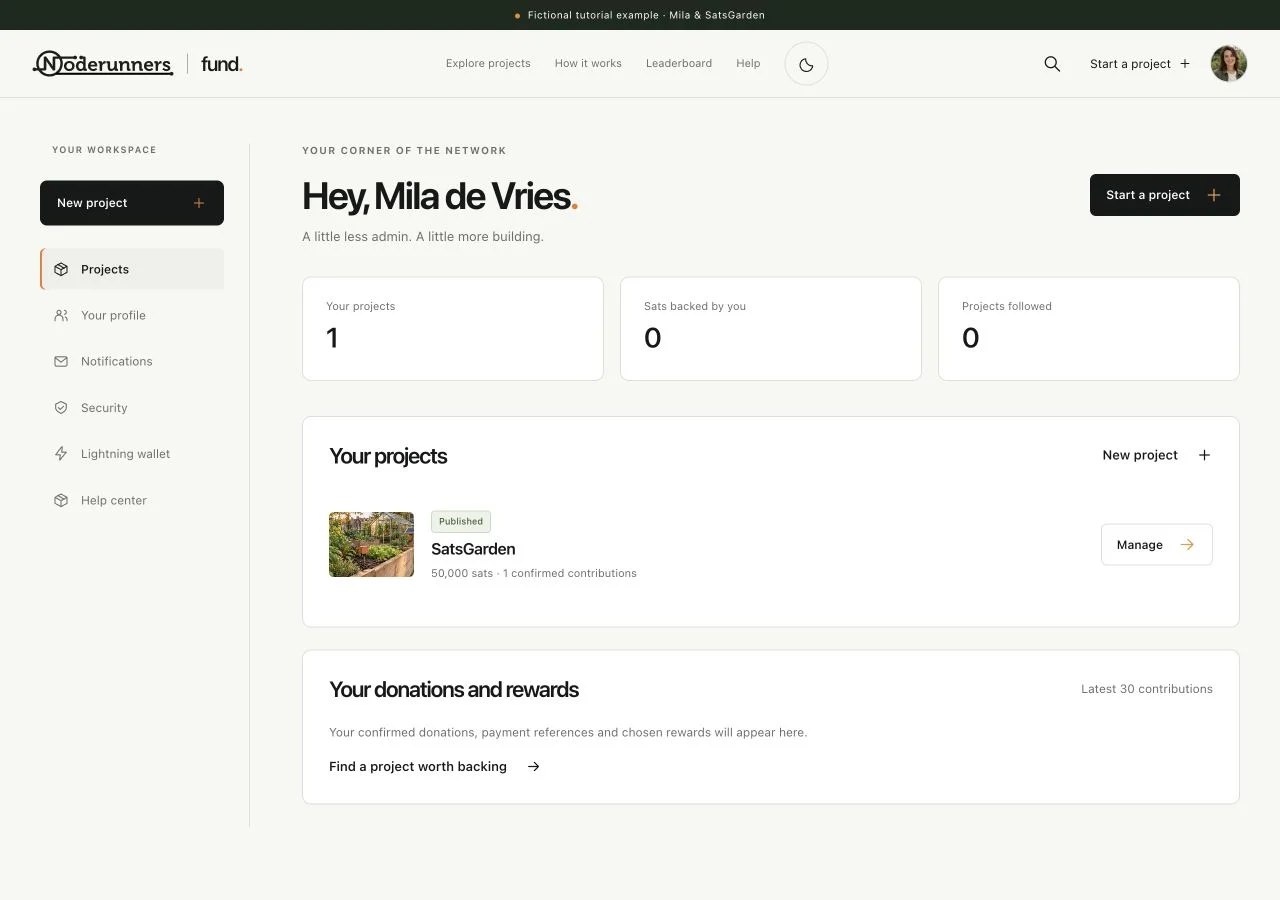
Select your avatar in the top-right corner, then choose Dashboard, or use Projects in the workspace navigation. The dashboard brings together your projects, your donations and projects you follow. If you have just joined, empty sections are normal.
Make your public profile useful
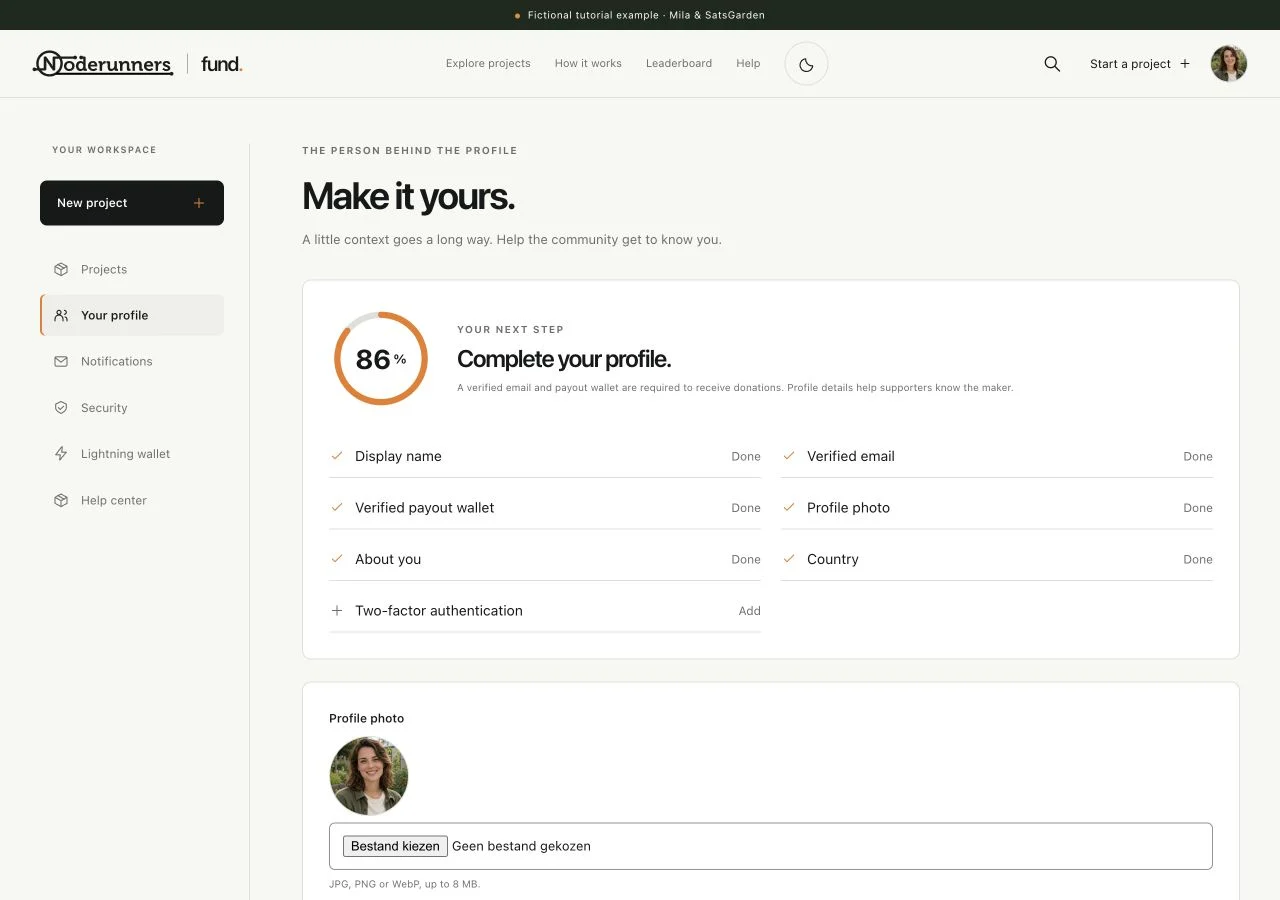
Choose Your profile. Add a clear display name, a profile image, a short bio and an appropriate country or location. Add your own website if you have one. Choose Save profile when finished. Public profile information helps supporters understand who is behind a project, so only include details you want to share.
Know what other people can see
Your display name, public profile and published projects can appear publicly. Your account email, security settings and private reward conversation are separate. Hiding your name on a donation changes its public presentation; it does not make the payment or delivery information invisible to everyone involved. See the privacy information for the platform policy.
Follow projects you want to keep up with
Open a project page and choose Follow project. Followed projects appear in your dashboard. Following a project does not make a donation. It gives you a convenient way back and, depending on your email choices, lets you receive relevant project updates.
Find your own donations and reward commitments
Look in the dashboard for your support history and open the relevant donation. Its private page holds the payment status, saved reward terms and any conversation about delivery. Guest donations are accessed through their private donation link; keep that link even if you later create an account.
Read notifications on the site
Choose Notifications to open your account notice list. A notice can be available there before its email has arrived. Open the relevant project, donation or conversation from the notice. You can mark a notice as read; that does not change the payment or reward.
Choose which optional emails you want
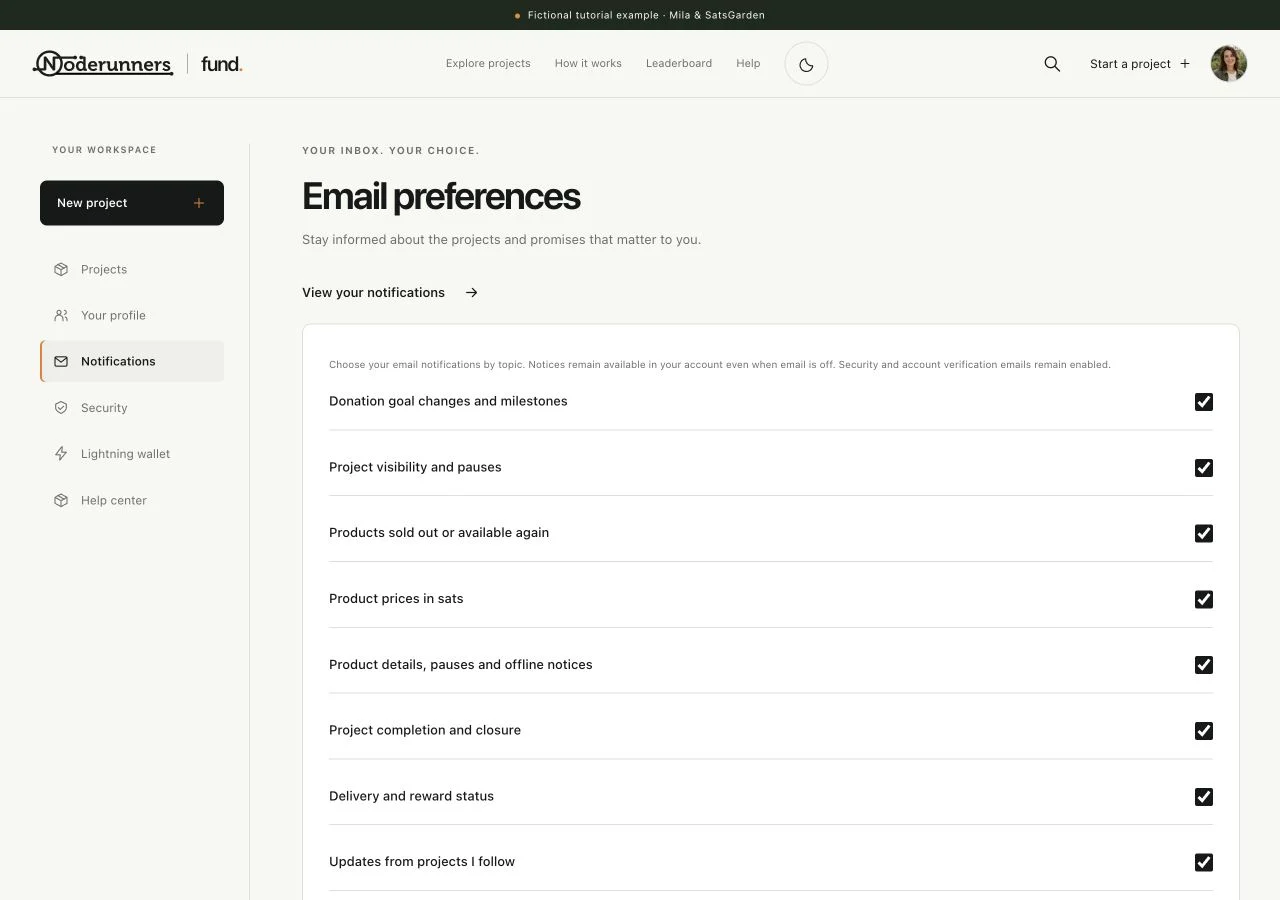
Open Email preferences from Notifications. Review the individual topics, including project updates, donation confirmations, product changes and creator orders, then choose Save preferences. Turning an optional email topic off does not remove the on-site notice. Verification and security messages are handled separately because they protect account access.
Prepare to become a maker when you are ready
For your own project, first connect a payout destination under Lightning wallet, then choose New project. Account creation and project drafting are free. A verified payout destination and a complete project are needed before publication; you do not need to publish immediately.
Sign out on shared devices
Open your avatar menu and choose Sign out when you finish on a shared device. For password changes, email changes, an authenticator or Lightning sign-in, use Security. Keep private donation links and recovery codes out of public posts.
You’re all set when…
You know where your projects, followed work, donations and notices live.
Your public profile and optional email preferences match what you want to share.