
Before you start
A verified account. Keep access to its email inbox.
For optional two-factor authentication, an authenticator app and somewhere safe to keep recovery codes.
For Lightning sign-in, a wallet that supports LNURL-auth. This is an authentication feature, not a payment.

Follow along with Mila & SatsGarden, our fictional example account and project. Screens show example data.
Open Security from your workspace
Choose Security in the workspace navigation. Review the available password, email, two-factor and Lightning sign-in settings. The site may ask for your current password before a sensitive change. Do not share that password in a project conversation or support message.
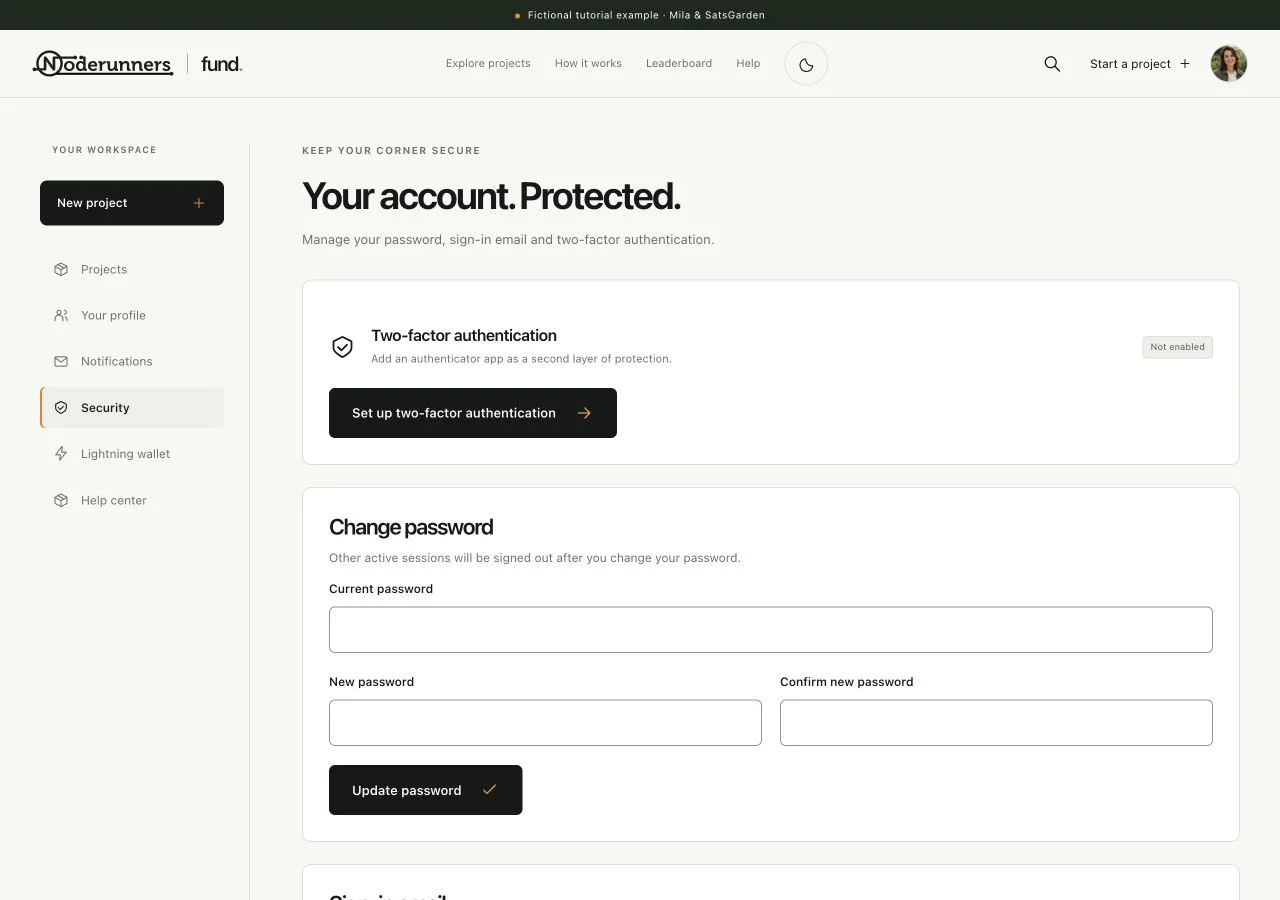
Use a unique password and keep it current
Use the password controls when you need to change it. Enter the current password and the requested new-password confirmation. A successful password change can invalidate other sessions. If you cannot sign in, use Forgot your password? on the login screen and open the reset link sent to your account email.
Enable an authenticator if you want another sign-in check
Choose the two-factor setup action and follow the QR or setup-secret instructions in your authenticator app. Enter a fresh code and the requested password confirmation to finish. Two-factor authentication is optional for ordinary accounts; once enabled, you need its code or an unused recovery code when the site asks for one.
Store recovery codes somewhere private
When recovery codes are shown, save them in a private place you can reach if you lose the authenticator. Each code is single-use. Do not publish them, include them in screenshots or send them through a project chat. The images in this help centre do not show working account secrets.
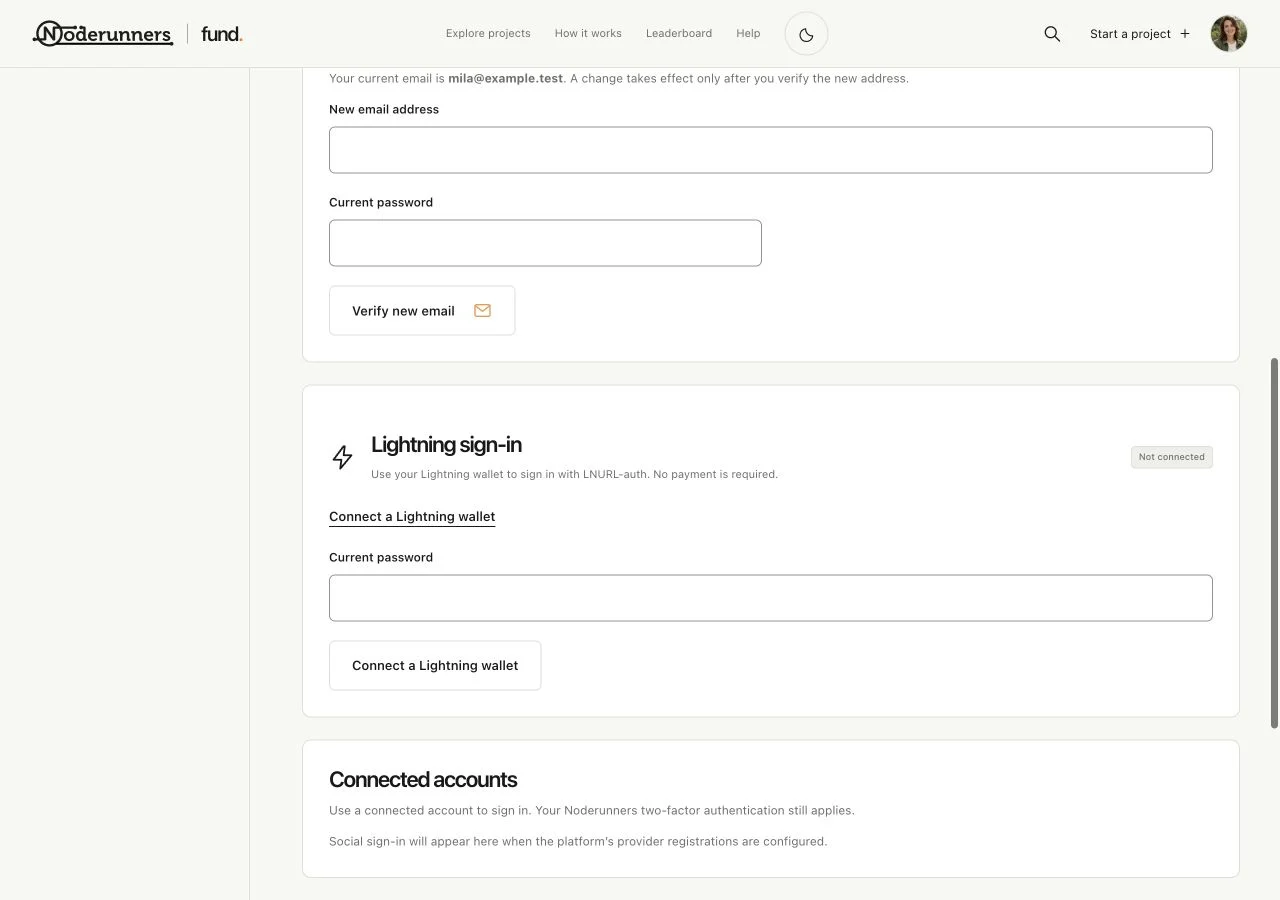
Link a Lightning wallet from the existing account
Find the Lightning sign-in section in Security and start the connection action. Confirm the account credentials requested, then approve the connection request in a compatible wallet. Connecting a wallet is done while signed in to the existing account; scanning a login request does not create a new account.
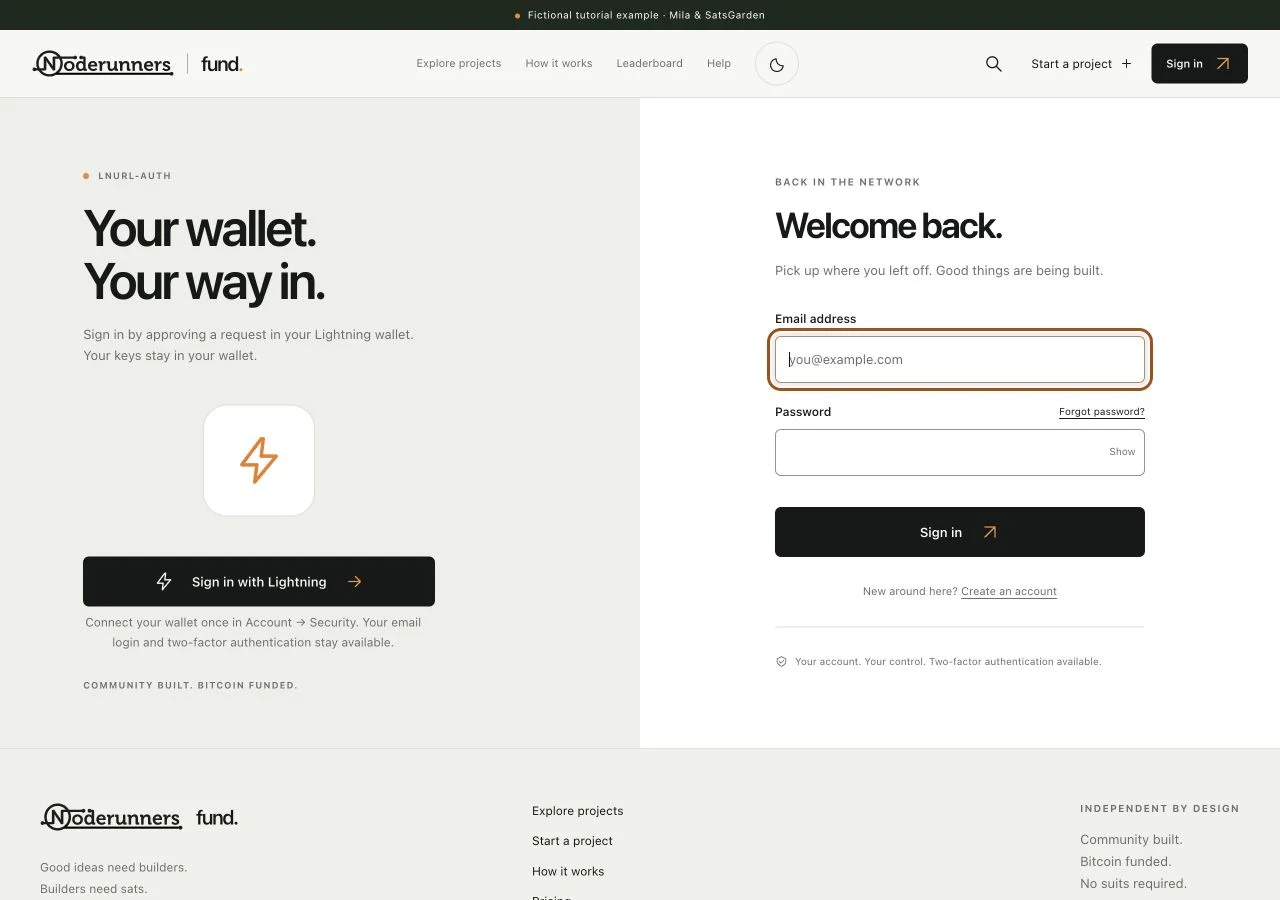
Choose Lightning sign-in on a later visit
Open Sign in. The Lightning panel is on the left on larger screens, alongside the normal email form. Start the request and scan or open it with the linked wallet. Approve only a request you started yourself, then complete the website's sign-in step. No sats are required for LNURL-auth.
Complete the authenticator step when enabled
If your account has two-factor authentication, approving a linked wallet does not remove that extra check. Enter the authenticator code or an unused recovery code when asked. Login requests are time-limited, so start a new request if the screen says it expired.
Change your email through the security controls
Use the account email-change action rather than editing a public profile field. Confirm the security checks and open the message sent to the new address. The existing address stays active until the new one is confirmed. A verification or recovery link is private access; do not post it publicly.
Use the appropriate recovery route
For a forgotten password, request a reset email. For an authenticator problem, use a saved unused recovery code. If you disconnect a Lightning sign-in, keep another working sign-in method available. If you cannot regain access, contact platform support with the account information needed to investigate, never with recovery words or passwords.
You’re all set when…
You have a working sign-in method and access to your inbox.
Any authenticator recovery codes are stored privately.