
Before you start
Sign in as a project owner and open Analytics, or use the analytics icon in a project’s editor.
Select the project scope, period and reporting timezone before comparing numbers.

Follow along with Mila & SatsGarden, our fictional example account and project. Screens show example data.
Choose projects and a period
Select one project, several projects or all projects you own. Check the reporting dates and timezone. Use your personal contributions perspective to inspect support linked to your own account. A project team role alone does not give access to owner analytics.
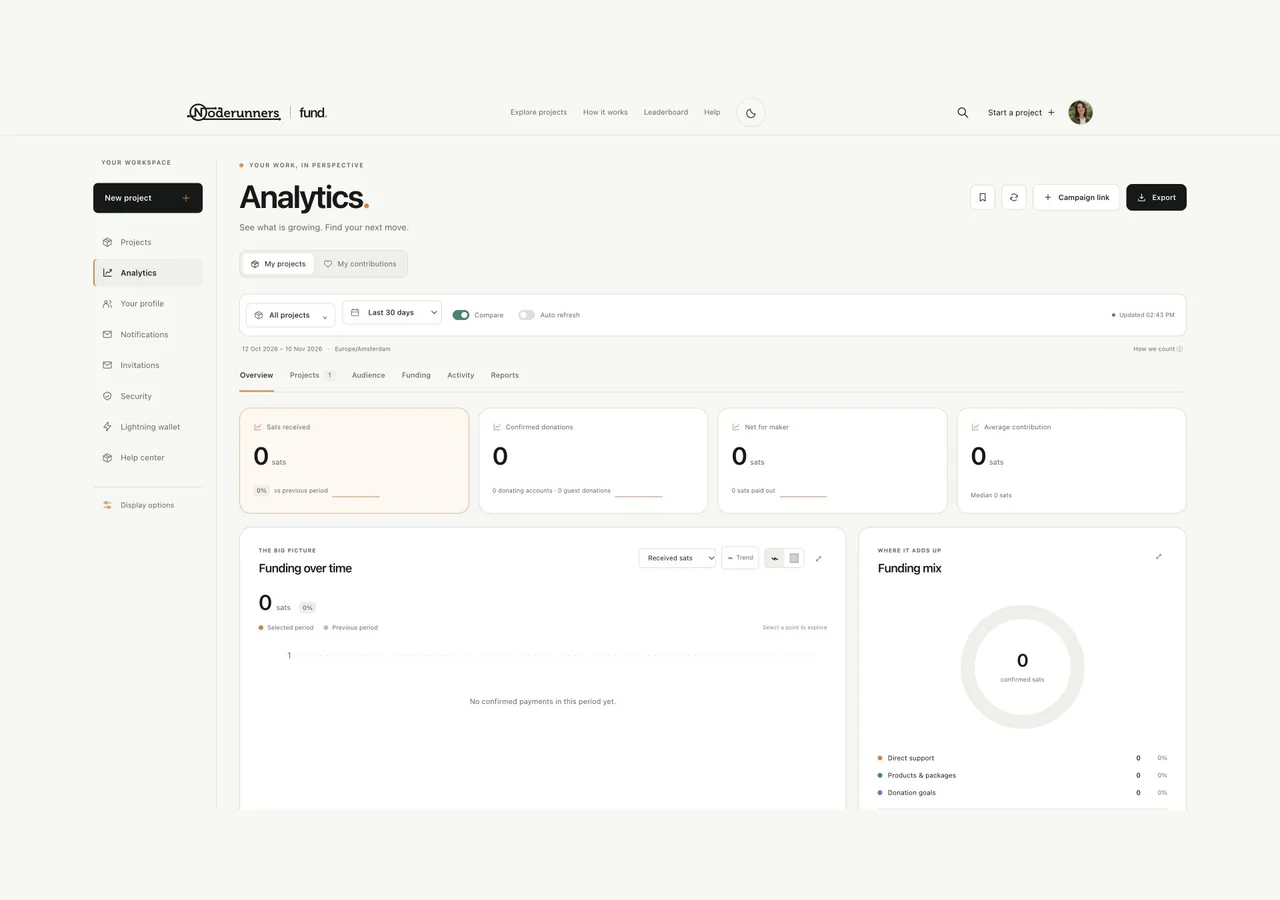
Read the financial states separately
Received sats and donation counts refer to confirmed paid donations in the selected period. An open invoice is not funding. A confirmed donation can still have a pending outgoing payout. Product/package figures follow saved purchase agreements; package components are not counted again as extra revenue. Publication contributions are separate from project donations.
Understand visits and audience
Visit sessions are not a count of unique people across days or devices. Browser recognition is optional; unknown visitors are not silently classified as new or returning. The page shows recognition coverage and labels the measured scope. Your own project visits and recognised bots are excluded from ordinary visit measurement. Historical visits from before measurement began cannot be reconstructed.
Create a campaign link or QR code
Use the campaign dialog to choose a public project link and meaningful campaign labels, then copy the tagged link or download its QR code. Share that public link in the intended channel. Source/campaign results use the recorded attribution, so do not assume every later donation can be matched to a visit.
Save a useful report
Save the current project scope, date settings, timezone and chart choices as a private report. Reopen it when you want the same view. Reports and campaign links can be renamed, archived and restored. Archiving a campaign does not erase its measured history or disable a link already shared.
Inspect details and export carefully
Open chart details and use transaction search or CSV export when you need the records behind a result. Exports follow your selected access scope and filters; unpaid attempts retain their status. Audience exports contain aggregate data. Visit measurement preferences are available from the site footer; DNT/GPC opt-out signals are respected.
You’re all set when…
You can explain the selected scope and distinguish visits, paid donations and payouts.
Your saved report or campaign link matches the question you want to answer.