
Before you start
Sign in with the account that owns the project.
Open Projects in your workspace and choose the project you want to manage.
Keep existing reward commitments in mind before changing an offer or closing a project.

Follow along with Mila & SatsGarden, our fictional example account and project. Screens show example data.
Open the project workspace
Choose the project from Projects in your dashboard. The tabs separate Project, Story, Media, Plan and details, Funding options, Goals and Manage. Check the status badge before editing. A closed project is kept as a record and has different editing controls.
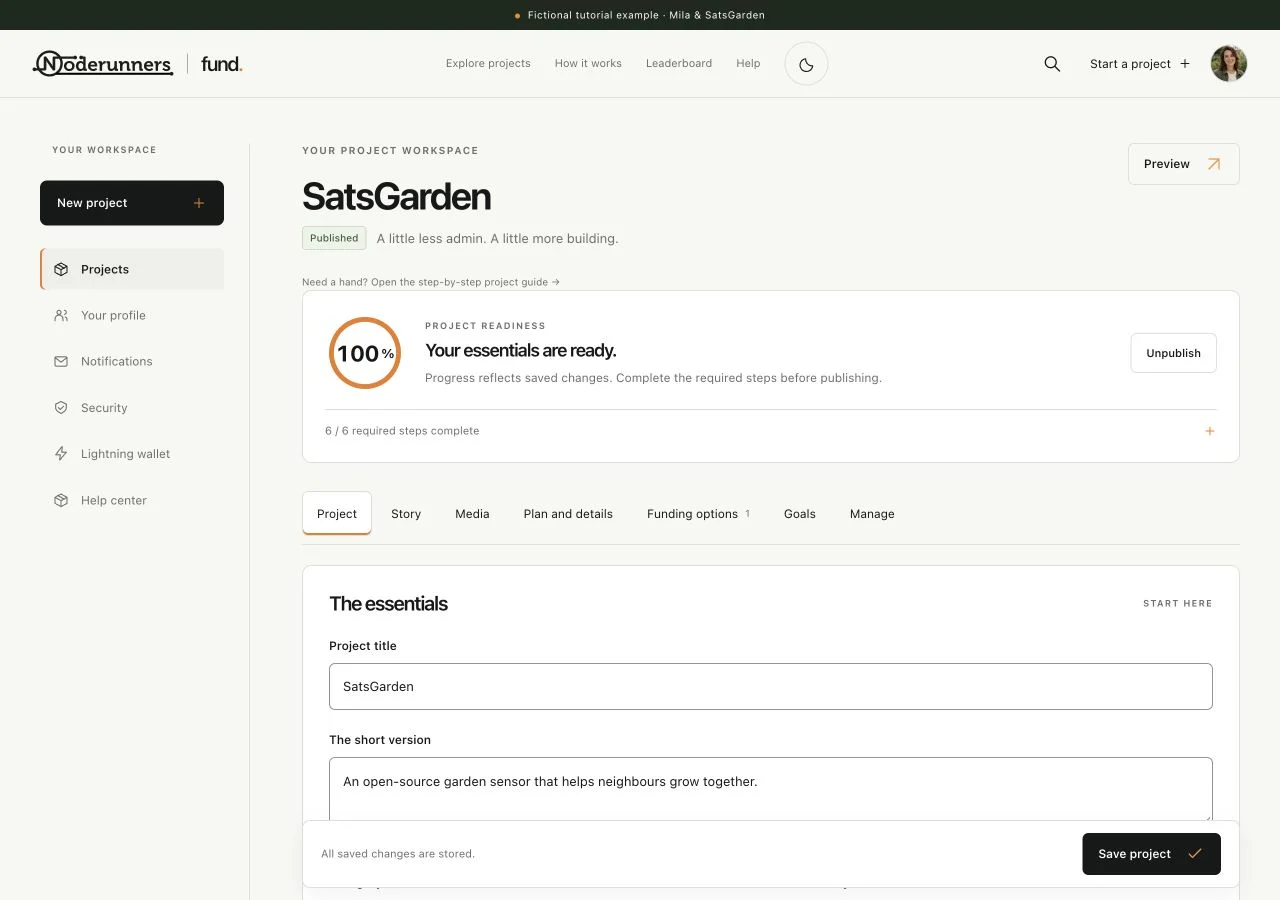
Update the introduction and story
Use Project for the title, pitch, cover, stage and project links. Use Story for the longer explanation. Save the project, then open Preview to see what visitors will read. Changes should help people understand the current work; do not use a public edit to silently replace the original terms of an existing reward order.
Keep the gallery useful and in order
Open Media. Add new images within the 9-image limit, remove an image only when you intend to take it out of the gallery, and drag existing images into the order you want. On touch devices, use the drag gesture on the gallery item or its handle. Save the project after arranging the images, then confirm the public sequence in Preview.
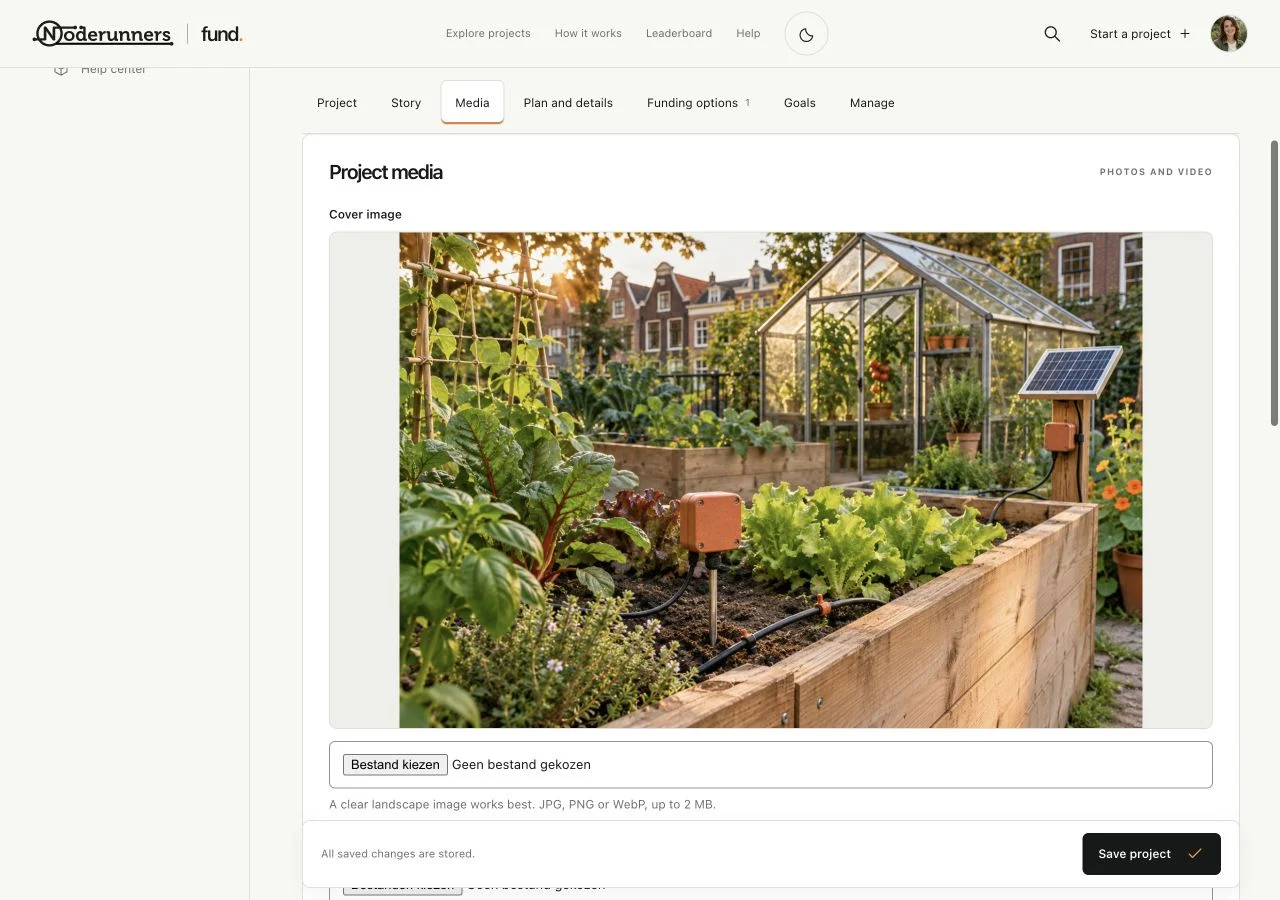
Maintain videos and their descriptions
In Media, use a main video for the strongest introduction and extra slots for supporting clips. Give each clip a useful title and description. For an uploaded video, wait until upload and processing feedback finish before leaving the dialog. For a link, use a supported YouTube, Vimeo or direct video URL.
Update the roadmap as real work is completed
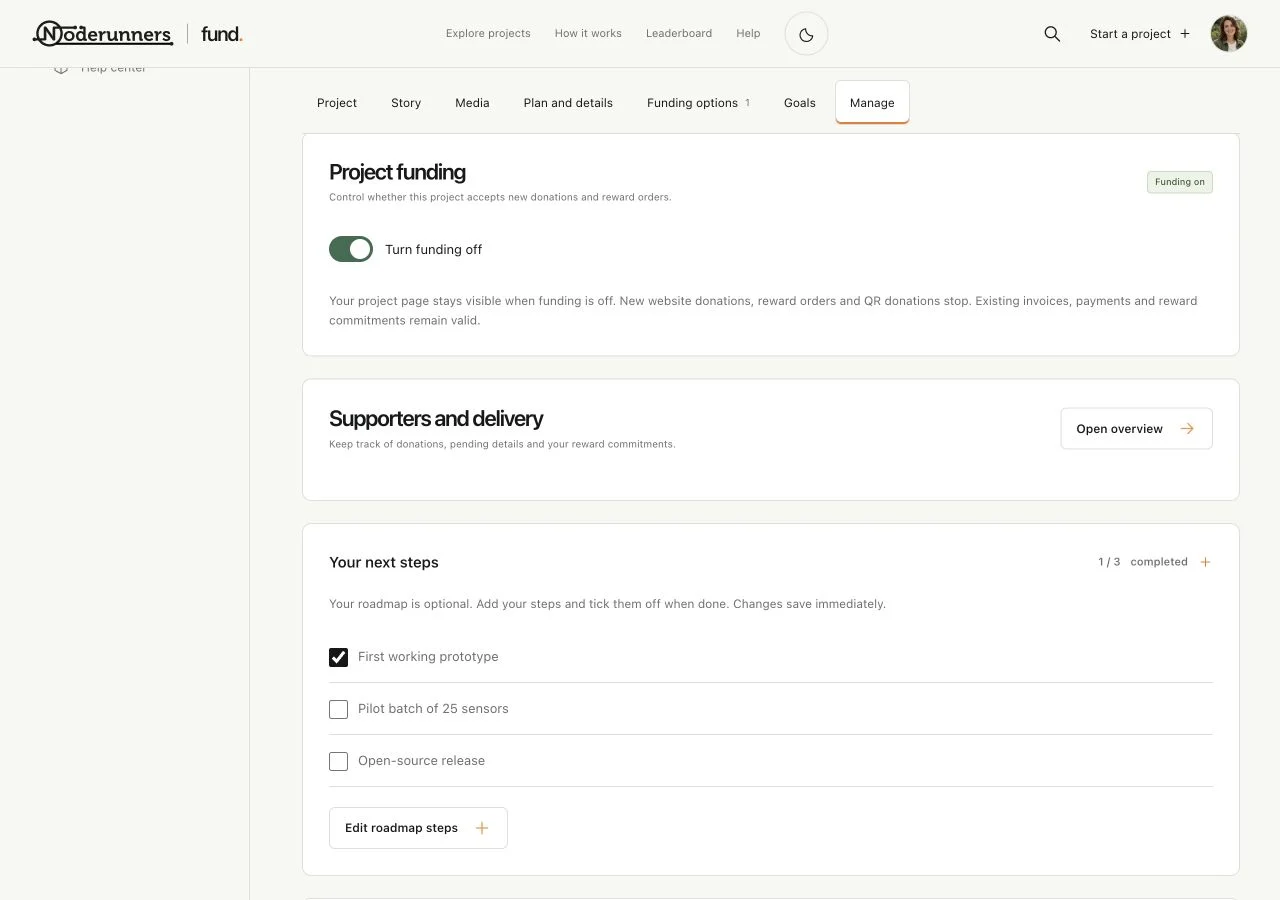
Open Manage and review the roadmap or next steps. Add or revise the next tasks where the controls allow it, and mark a milestone complete when it is actually done. Keep the roadmap about observable progress: a prototype assembled or a playthrough published is clearer than a vague promise.
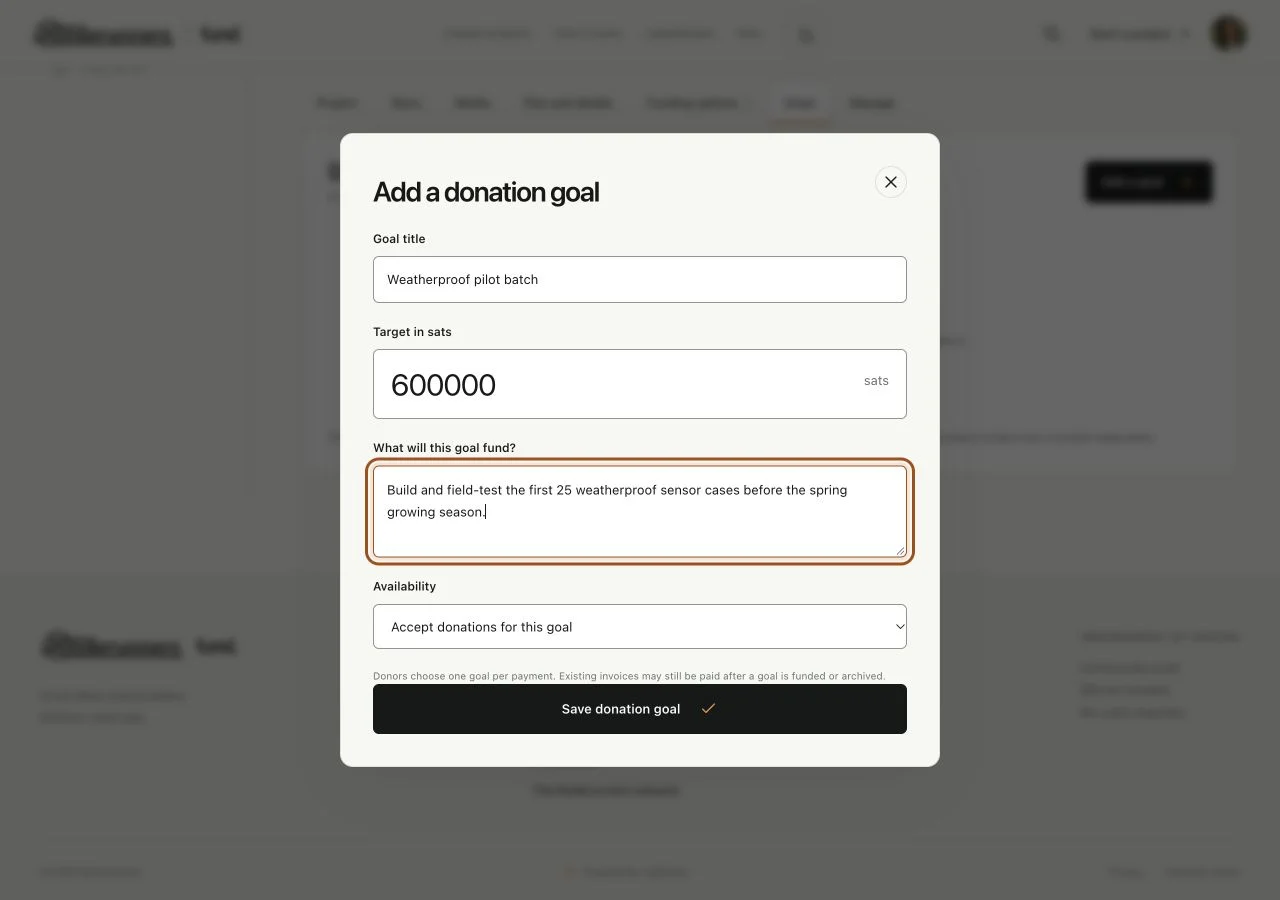
Use Goals for separate purposes
Open Goals when supporters should be able to back a particular next step. Give each goal a clear purpose and target. Follow the editor rules for changing an existing goal: once payment commitments exist, its saved purpose and donor records need protection. An overall project target and a specific donation goal are different things.
Publish an update with actual progress
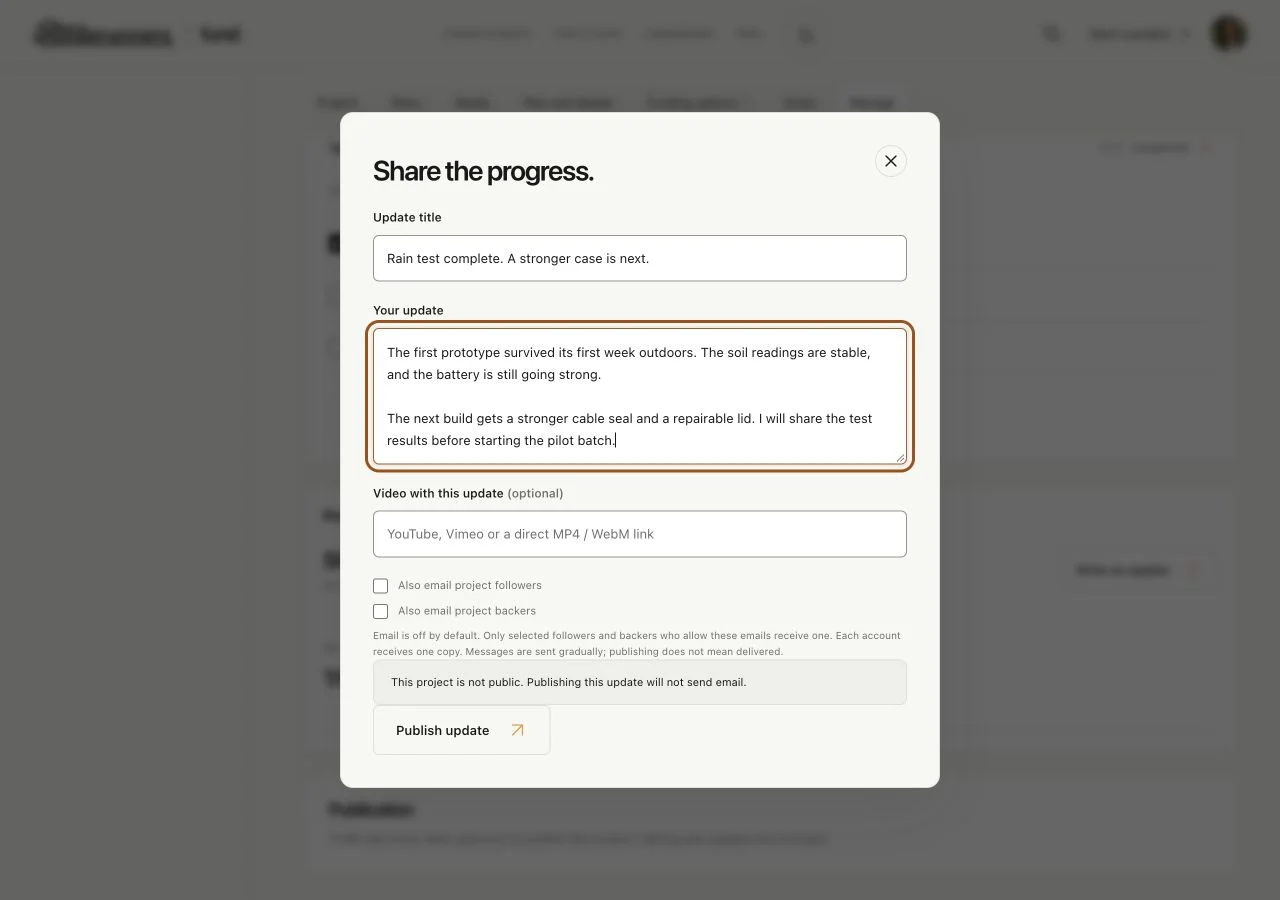
Open Manage, expand Project updates and choose the add-update action. Give the update a clear title and a useful description of what changed. Add a relevant image or supported video when it helps. Choose the follower and backer email options intentionally, then publish the update once.
Review funding options and availability
Open Funding options to edit an offer, its image, price, capacity or availability. Explain meaningful changes to affected supporters. Hiding an option stops it being offered to new supporters; existing commitments remain in your overview. Packages can share availability with their component rewards.
Look after confirmed supporters
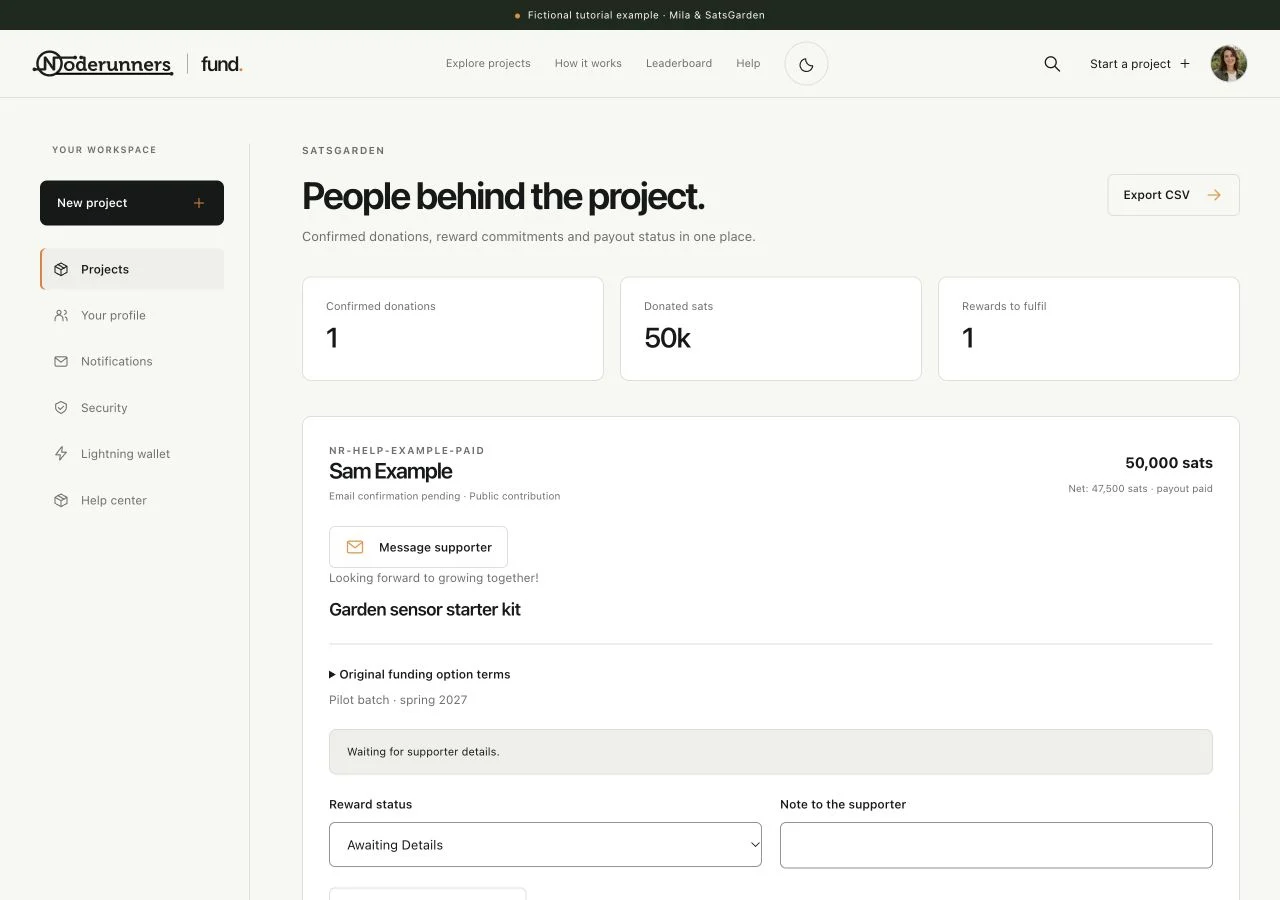
In Manage, open Supporters and delivery. Read confirmed donations, reward choices, payment status and the saved terms. Choose Message supporter for a private conversation, request the missing practical details and keep the delivery status current. Use the saved donation reference when discussing a specific order.
Pause new funding when you need to
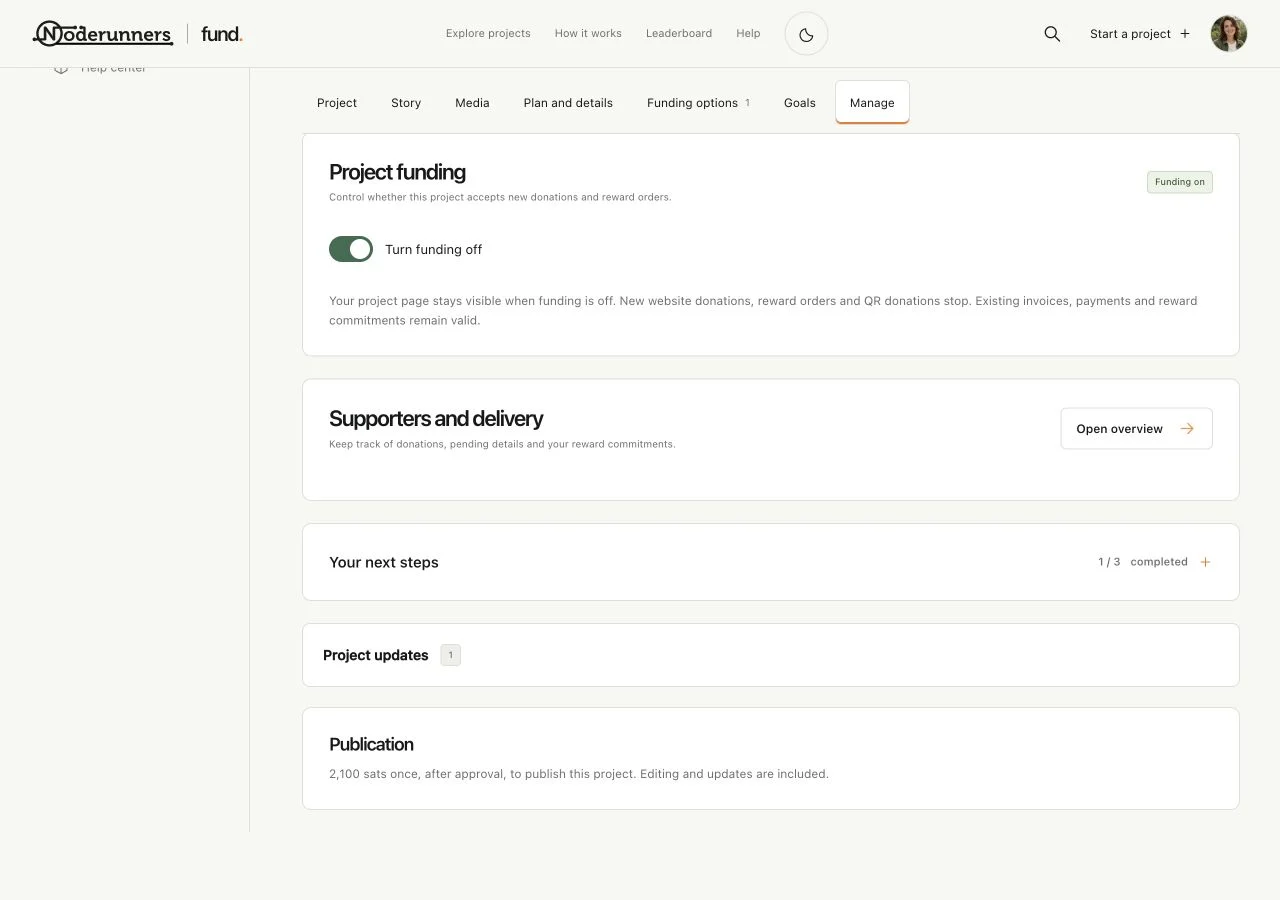
Use the funding control in the owner workspace when you want to stop new donations and reward orders while leaving the project information available. This is useful when you need to catch up on delivery. Existing invoices may still be payable, so pausing is not a way to erase an earlier commitment. Re-enable funding through the same control when you are ready.
Understand unpublishing and closing
Use the project visibility or close controls for the situation they describe. Temporarily unpublishing a project, pausing funding and closing a finished project are different actions. Read the confirmation and provide the requested reason or fulfilment plan. Closing does not remove the duty to resolve existing reward commitments; keep the supporter overview available.
Review the public result after a change
Save the relevant changes, open Preview and check the section you changed. Review your account notices after significant actions. Share the public project or update URL rather than a private editor or donation-access link.
You’re all set when…
Your saved public page reflects the current work.
Supporters have current information and private delivery questions are being answered.