
Before you start
A saved project draft owned by your account.
A clear description of what you can offer, at what sats amount and when.
For physical items, the shipping area, cost arrangement and practical delivery conditions.

Follow along with Mila & SatsGarden, our fictional example account and project. Screens show example data.
Open Funding options in the project editor
Save the project first, then open Funding options and choose the add-option action. Each option has its own description and image. You can offer recognition, custom work, a digital or physical item, a plain support option or a package when those types fit the project.
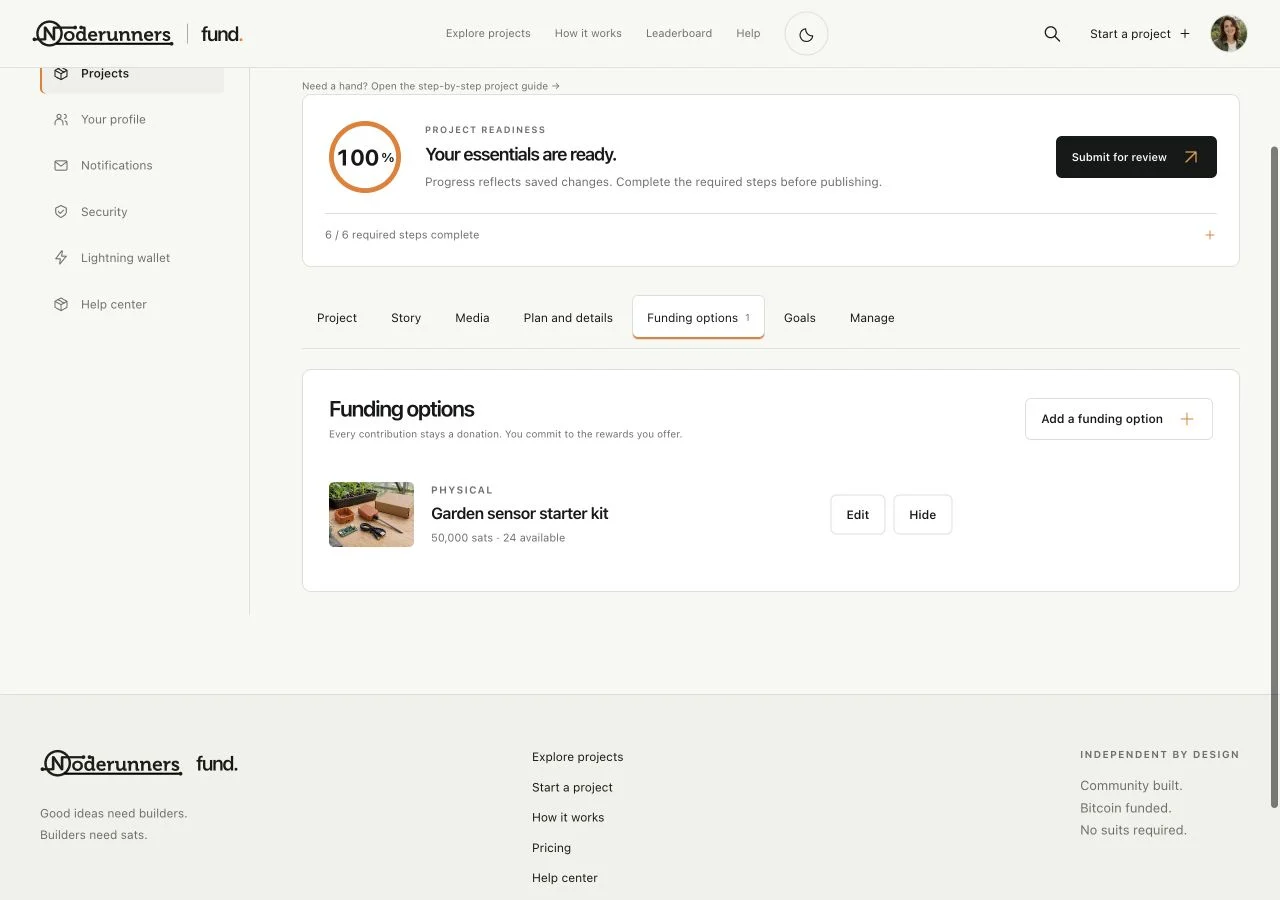
Choose the type and a clear title
Pick the type that matches the commitment rather than the most impressive label. Give it a short title that tells a supporter what they get. Mila's example starter kit is a physical reward; a thank-you credit would be a different kind of option.
Explain what is included and who it is for
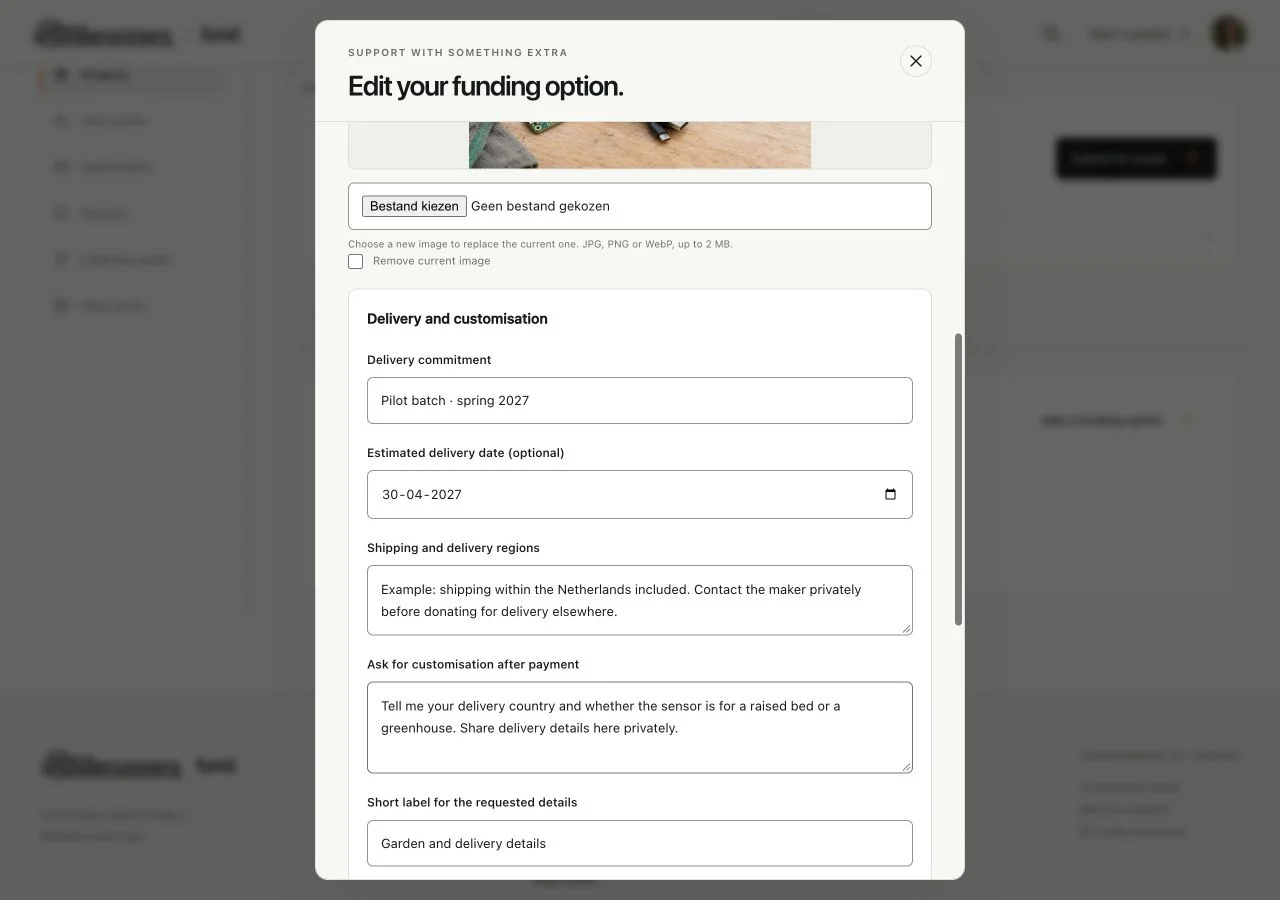
Write a useful description and fill in the included items, delivery information and any extra terms offered by the form. State limits clearly. For custom work, explain what will be agreed after payment. For a physical item, say where you ship and how shipping costs are handled. Avoid making a supporter guess the important conditions.
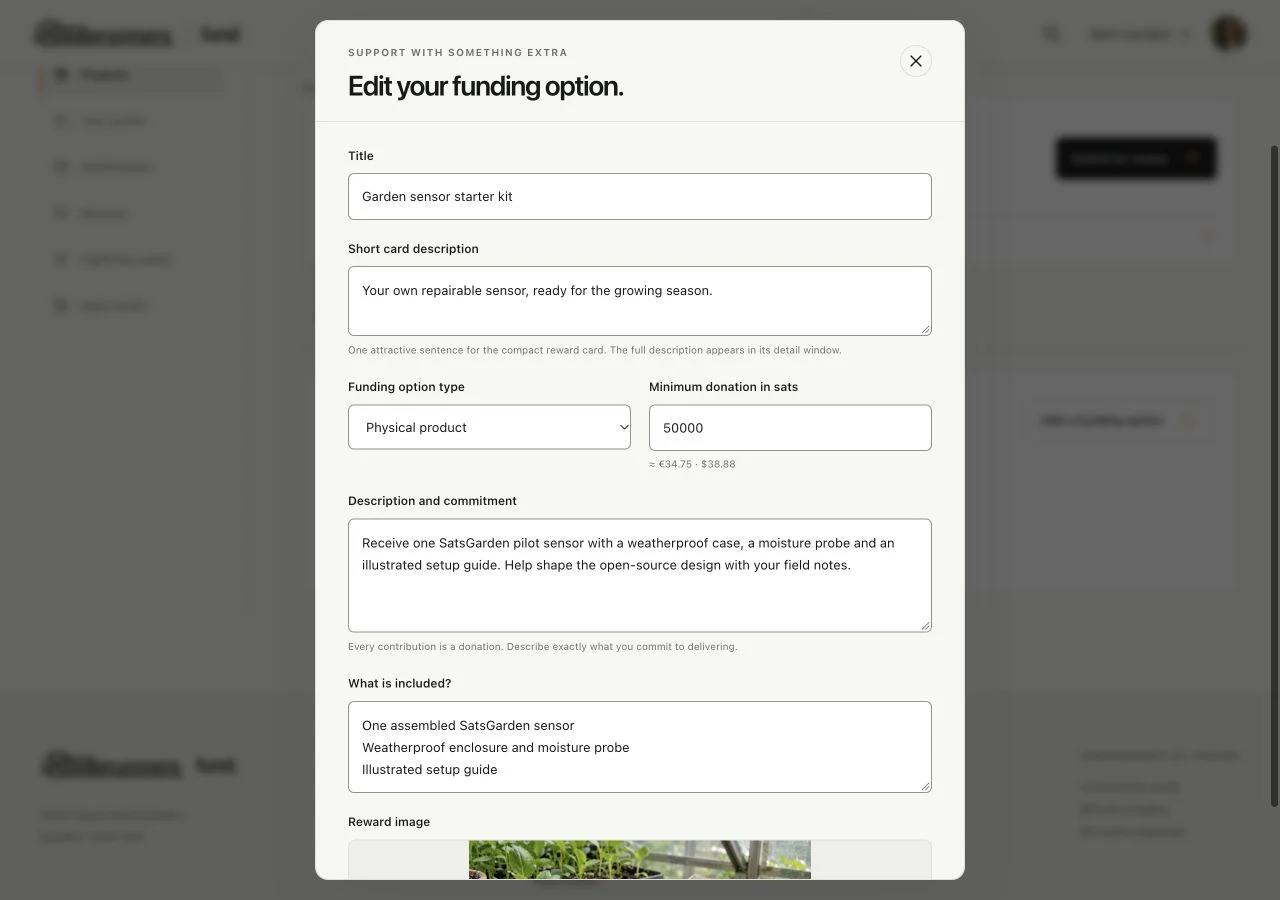
Add an image that matches the reward
Upload an image for the option itself. A picture of a starter kit is more helpful for that reward than an unrelated cover image. Use the remove or replacement control if you need to change it later, and check the card and detail view in Preview.
Set the sats amount and availability
Enter the donation amount for the option and an honest capacity. Leave capacity empty only when an unlimited option is appropriate. Use quantity and edition settings where offered. A reservation or a component shared with a package can affect what remains available; do not promise the same limited unit twice.
Ask for personalisation through the private flow
Use the customisation prompt or details fields to explain what the supporter should send after payment. Keep payment friction low by asking only for what is needed at the appropriate stage. Do not ask people to put delivery addresses or private email details in a public project comment.
Save and inspect the complete option
Save the option, then open the public preview and its reward details. Check the image, amount, remaining places, included items and delivery estimate. Packages should make their components clear. If the offer is not ready for new supporters, keep it unavailable until it is.
Use Supporters and delivery after payment
Open Manage, then Supporters and delivery. Read the saved reward snapshot for the specific donation. Choose Message supporter when you need information, and update Reward status and the note when work progresses. Update and notify supporter records the change and creates the appropriate notice.
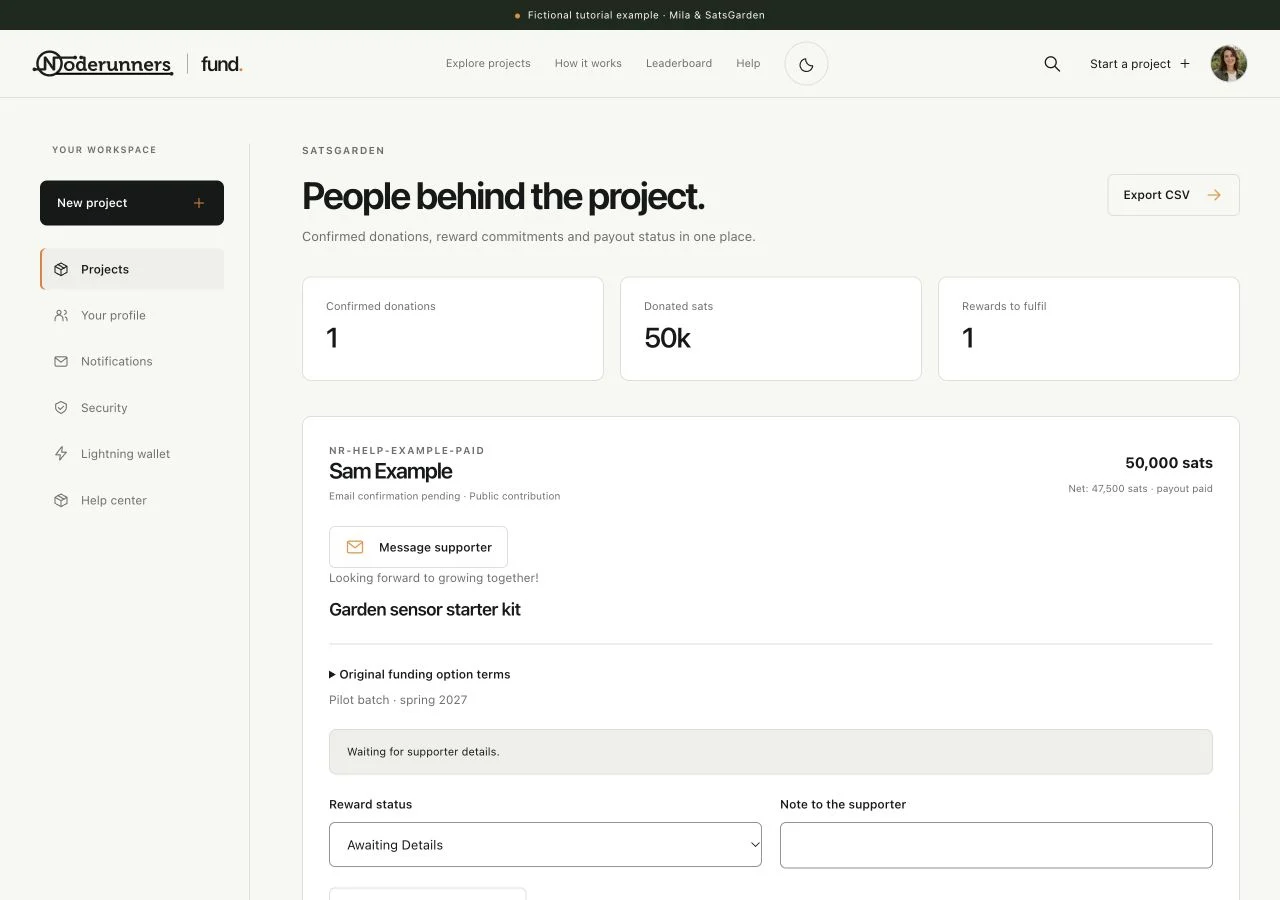
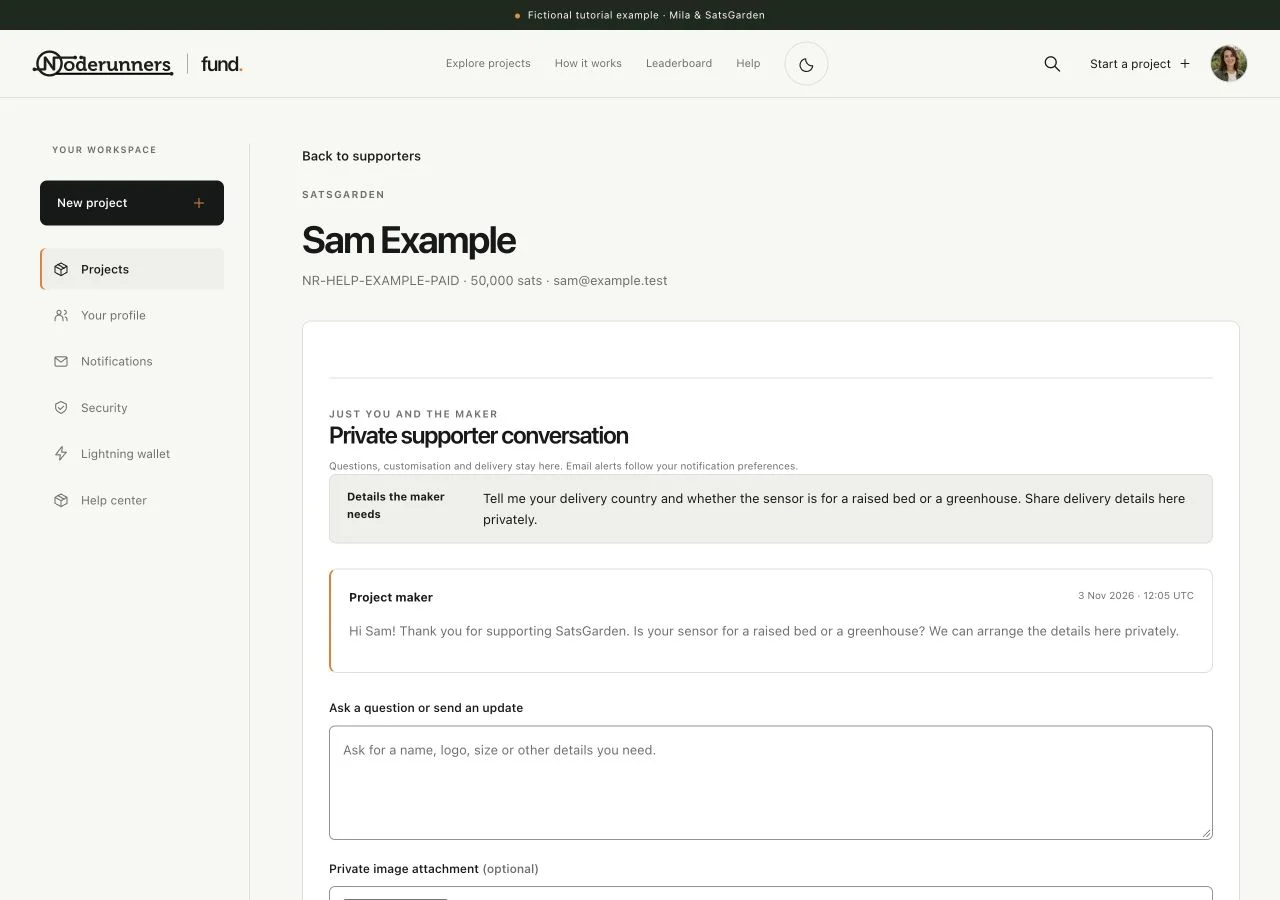
Resolve practical details in the private conversation
The maker and supporter can exchange the information needed to fulfil the reward through its private page. Messages can request missing details and, where offered, include attachments. Use that conversation for delivery questions; automatic no-reply emails are notifications, not a direct email relay to the maker.
Change future offers without losing existing promises
You can change an image, adjust future prices or stop offering new places through the editor. Existing donations keep their saved price and terms. If a commitment needs attention, communicate with that supporter and use the appropriate status instead of silently rewriting the public offer or marking it delivered early.
You’re all set when…
A supporter can understand the offer before paying.
Confirmed commitments and conversations are managed through the supporter overview.