
Before you start
Open the project as its owner and choose Team & allocation.
Invite only someone who has agreed to receive the invitation.
Discuss responsibilities and the intended division with your collaborators.

Follow along with Mila & SatsGarden, our fictional example account and project. Screens show example data.
Open the correct project’s team
Choose Team & allocation in that project’s editor toolbar. Check the project title before changing anything. Membership, editing rights and allocation changes apply only here.
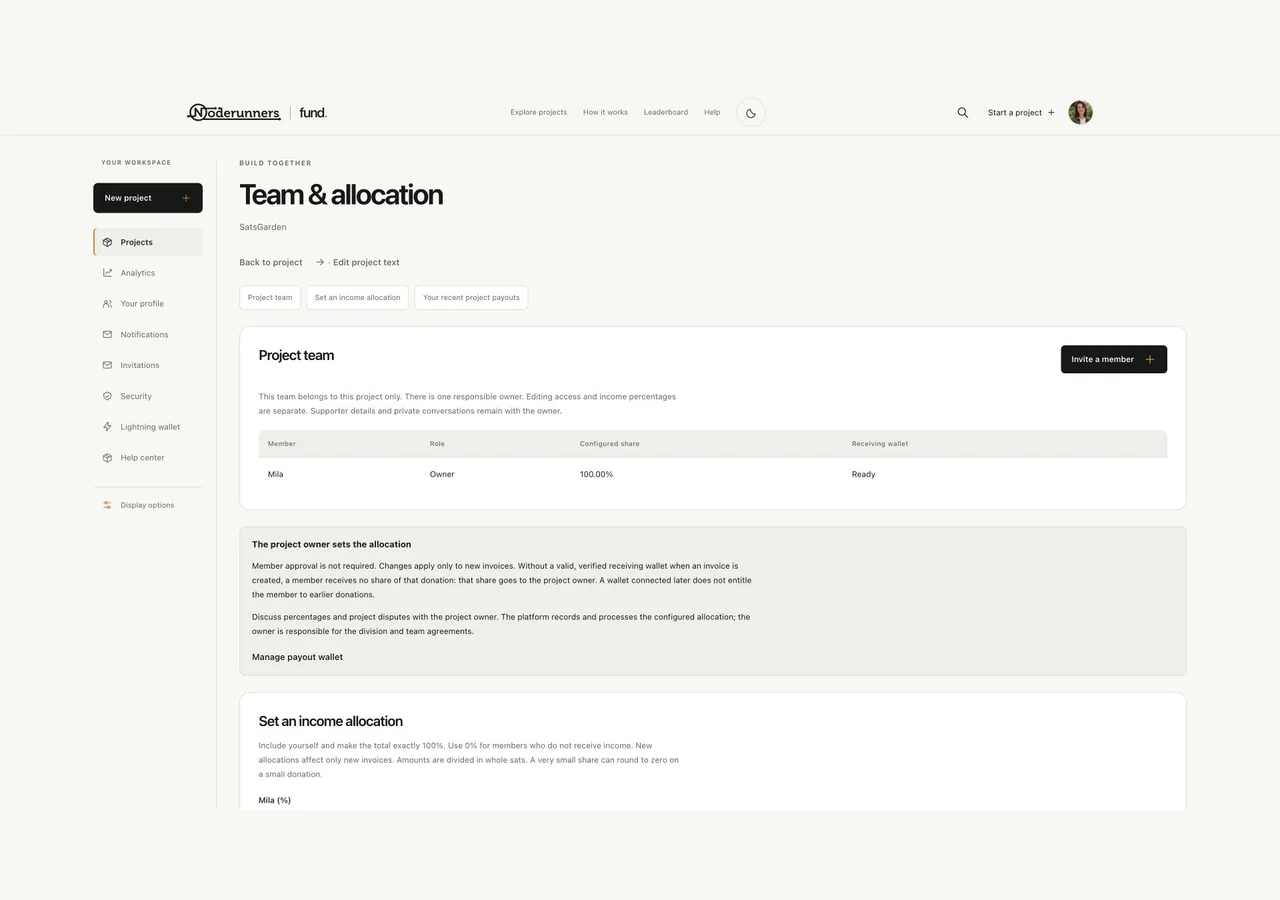
Prepare and review an invitation
Choose Invite a member, enter the recipient email and choose whether limited text editing is allowed. Review the invitation, confirm prior recipient permission and send once. The platform limits repeated invitations; an invitation does not subscribe someone to project updates or marketing.
Let the recipient accept their role
The recipient opens the personal invitation link and signs in or creates a matching verified account. Opening the link alone does not accept it: the recipient separately accepts the project role. The link is time-limited. Pending invitations can also be found under account Invitations.
Understand the limits of membership
A member can see the project team, allocation and their own team payouts. A text editor can change the allowed public text and links. Membership does not grant ownership, publication controls, bonus claims, wallet changes, private supporter conversations, analytics or team management.
Save an allocation totalling 100%
Once members have joined, the owner enters percentages including the owner’s share, with a total of exactly 100%. Review the example amounts and responsibilities before Save and activate allocation. Members are informed; member approval is not the activation step. The division applies after the normal platform fee and only to new invoices.
Check receiving wallets and historical payments
Every recipient needs a valid verified receiving wallet when a new invoice is created. If a member is not eligible or has no valid wallet, that donation’s share goes to the owner; connecting later does not create a claim on earlier donations. Existing invoices keep their original recorded allocation and destinations. A confirmed incoming donation and a completed outgoing payout are separate states.
You’re all set when…
The correct project has the intended members, rights and active allocation.
Everyone understands that future invoices use the new allocation while earlier ones stay unchanged.